
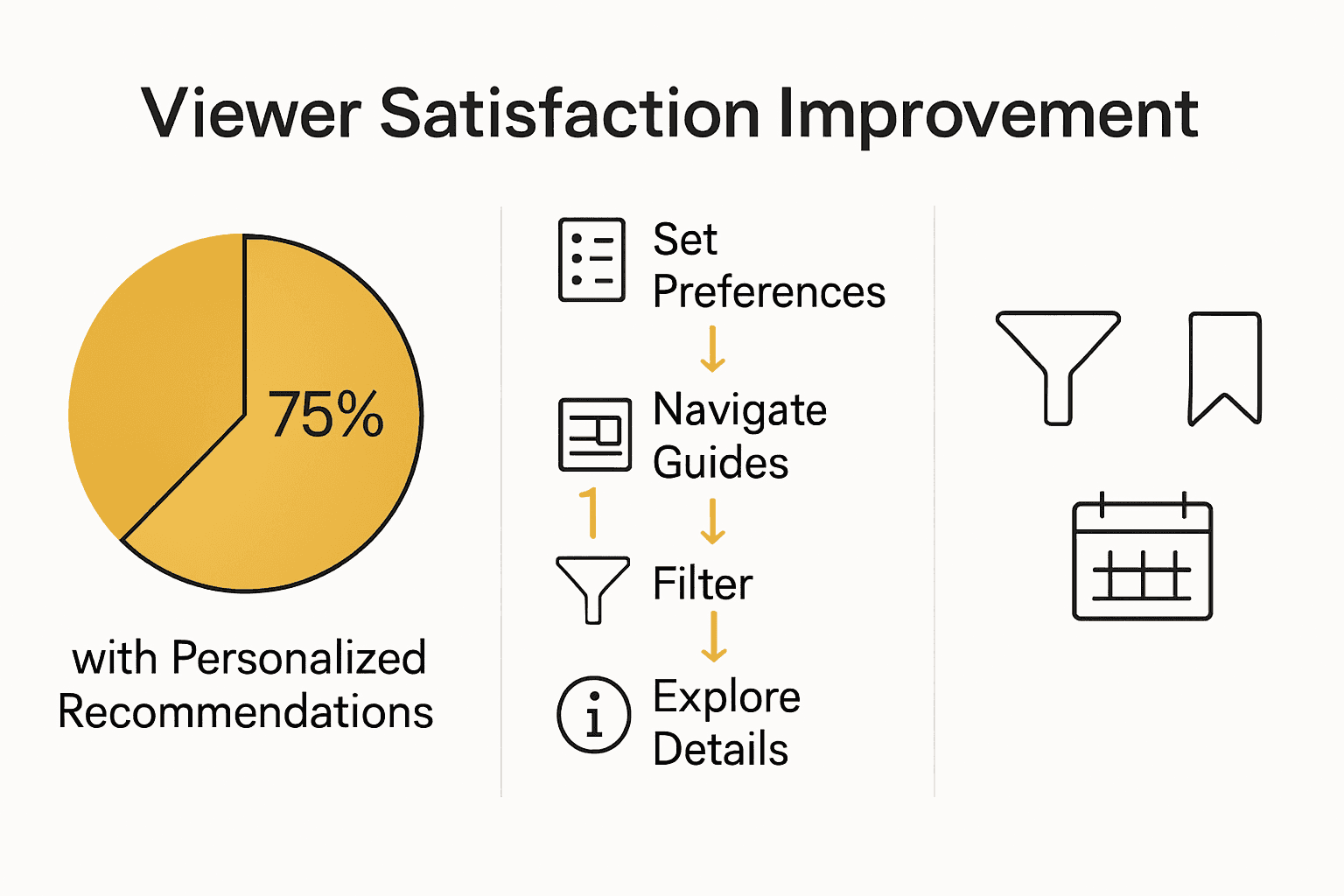
How to Use Primetime Guides for Effortless TV Planning. Scrolling endlessly through TV listings often feels like searching for a needle in a haystack. With so many streaming services and networks, viewers can miss out on the shows they actually want to watch. Studies reveal that customized program recommendations improve viewer satisfaction by over 25 percent. By using smarter filters, tracking features, and program details, you can shift from chaotic channel flipping to a genuinely curated entertainment experience.
Table of Contents
- Step 1: Set Up Preferences For Personalized Listings
- Step 2: Navigate Primetime Guides Across Platforms
- Step 3: Filter Schedules By Date, Genre, Or Channel
- Step 4: Explore Details For Shows And Movie Premieres
- Step 5: Verify Reminders And Save Must-Watch Listings
Quick Summary
| Key Point | Explanation |
|---|---|
| 1. Personalize Your TV Listings | Customize preferences to improve content relevance and viewer satisfaction. Fill out favorite genres and actors for tailored recommendations. |
| 2. Use a Universal TV Guide App | Download apps that aggregate listings from multiple platforms to simplify show locating. This saves time and reduces frustration. |
| 3. Filter Schedules Effectively | Apply filters for date, genre, or channel to streamline content discovery. This enhances the efficiency of your viewing choices. |
| 4. Explore Show and Movie Details | Investigate synopsis, cast, and ratings to make informed viewing decisions. Understanding content enhances your entertainment selection process. |
| 5. Save and Verify Must-Watch Shows | Use bookmarking features for your favorite shows and set reminders to never miss scheduled airtimes. This organizes your viewing experience effectively. |
 |
|
Step 1: Set Up Preferences for Personalized Listings
Personalizing your TV listings transforms your viewing experience from generic scrolling to targeted entertainment discovery. According to research from ICS UCI, customizing program recommendations based on individual preferences significantly enhances content relevance and viewer satisfaction.
To get started, access your account settings and locate the “Preferences” or “Personalization” section. Here you will find options to indicate your favorite genres, actors, directors and types of programming. As highlighted by University of Nottingham Research, modern electronic program guides now offer sophisticated methods for tailoring content recommendations.
Take your time filling out these preferences carefully. The more specific details you provide about your viewing interests, the more accurate and personalized your recommendations will become. Pro tip: Update these preferences periodically as your entertainment tastes evolve. Your next streaming session might reveal a whole new world of perfectly matched entertainment just waiting to be discovered.
Step 2: Navigate Primetime Guides Across Platforms
Navigating primetime guides across multiple platforms can feel like solving a complex puzzle. According to TV Technology, viewers today face significant challenges in locating shows across different streaming services and traditional networks. The key is developing a strategic approach to managing multiple program guides.
As explained by Wikipedia, electronic program guides (EPGs) now offer sophisticated tools to help you track shows across platforms. Start by creating accounts on each major streaming service and network app. Use their built-in guide features and look for options that allow you to sync or combine multiple platform schedules. Some apps now offer cross platform integration that lets you see all your potential viewing options at once.
Pro tip: Download a universal TV guide app that aggregates listings from multiple platforms. These apps can save you time and reduce the frustration of jumping between different services. By centralizing your viewing information, you transform a potentially overwhelming experience into a streamlined entertainment selection process.
Your next viewing session will feel much more like an enjoyable exploration and less like a technical navigation challenge.
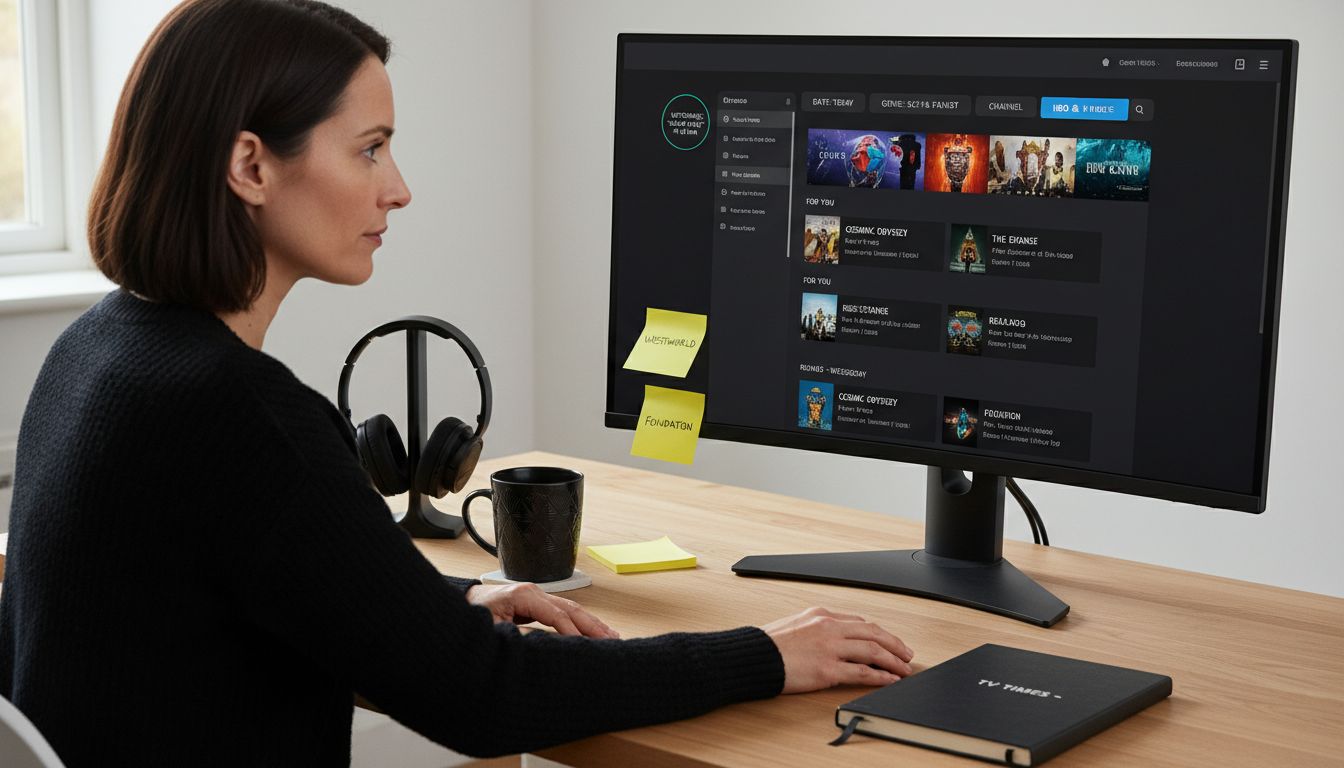
Step 3: Filter Schedules by Date, Genre, or Channel
Filtering TV schedules can transform your viewing experience from random scrolling to precision entertainment selection. According to research from ICS University, effective schedule filtering allows viewers to discover content more strategically by applying specific user defined criteria.
As outlined by Wikipedia, electronic program guides now offer robust filtering capabilities. To get started, locate the filter options typically found near the top or side of your program guide. You can usually narrow down selections by clicking dropdown menus for date ranges, specific genres like drama or comedy, and individual channels. Some advanced guides even allow combination filtering letting you select multiple criteria simultaneously such as sci fi shows airing next weekend on specific networks.
Pro tip: Most guides remember your previous filter preferences. This means after setting up your initial filters, future searches become increasingly personalized and efficient. By mastering these filtering techniques with TV content genres explained, you will dramatically reduce time spent searching and maximize your entertainment discovery potential.
Step 4: Explore Details for Shows and Movie Premieres
Delving into the rich details of shows and movie premieres transforms your viewing strategy from passive watching to informed entertainment selection. According to TV Guide, comprehensive listings provide viewers with more than just broadcast times they offer a gateway to understanding the nuanced world of entertainment content.
Start by clicking on specific show or movie titles to reveal extended information. Most modern program guides offer synopsis, cast details, critic ratings, and viewer reviews. As highlighted by Radio Times, these additional details help viewers make more informed viewing choices. Look for sections that provide background information like director insights, genre specifics, and potential content warnings that might influence your viewing decision.
Pro tip: When exploring premiere details for upcoming shows, pay special attention to understanding what is a movie premiere to gain deeper insights into the significance of first screenings. By thoroughly investigating show and movie details, you transform your entertainment selection from random picking to strategic curation.
Step 5: Verify Reminders and Save Must-Watch Listings
Transforming your TV viewing from hit or miss to precision planned requires mastering the art of saving and verifying your must-watch content. According to research from the University of Nottingham, electronic program guides now offer sophisticated reminder and listing preservation capabilities that put viewers in complete control of their entertainment schedule.
As explained by Wikipedia, modern electronic program guides provide multiple methods for saving and tracking your favorite shows. Start by locating the bookmark or save icon next to each program listing. Click to add shows to your personal watchlist. Most guides will allow you to set specific reminders complete with notifications on your preferred devices. Look for options to customize reminder timing such as 15 minutes before airtime or day before premiere.
Pro tip: When building your must-watch collection, consider creating multiple lists like “Immediate Watch” and “Future Interests” to keep your entertainment options organized. By mastering the TV guide navigation process, you will transform your viewing experience from random browsing to strategic entertainment consumption.
Frequently Asked Questions
How do I set up preferences for my primetime guide?
To set up preferences for your primetime guide, access your account settings and find the ‘Preferences’ or ‘Personalization’ section. Indicate your favorite genres, actors, and types of programming to enhance your content recommendations.
How can I navigate multiple primetime guides across different streaming platforms?
To navigate multiple primetime guides, create accounts on each streaming service and utilize their built-in guide features. Consider downloading a universal TV guide app that aggregates listings from all your services, making it easier to see all your viewing options in one place.
What filtering options should I use to improve my TV schedule searches?
You should use filter options available in your electronic program guide to refine your searches by date, genre, or channel. For example, look for dropdown menus to narrow your selections, allowing you to pinpoint specific content that fits your viewing preferences.
How can I explore details for shows and movie premieres effectively?
To explore details for shows and movie premieres, click on the specific titles in your program guide. This action will reveal extended information, including plot summaries, cast details, and ratings, which will help you make informed viewing choices.
How do I save and verify my must-watch shows in a primetime guide?
To save your must-watch shows, find the bookmark or save icon next to each program listing and click to add them to your personal watchlist. Additionally, set specific reminders for each show, such as notifications 15 minutes prior to airtime, to keep your viewing schedule organized.
Why is it important to update my preferences in a primetime guide?
Updating your preferences in a primetime guide is crucial as your entertainment tastes may change over time. Regular updates ensure that your content recommendations remain relevant and tailored to your current interests, maximizing your viewing satisfaction.