
Discover What Is on YouTube TV Tonight: A Simple Guide
Catching the right show on YouTube TV can feel like searching for a needle in a haystack. Did you know YouTube TV users can access over 100 live channels right from their favorite device? Most people think finding tonight’s programming is a chore but with just a few taps and some smart filtering, it turns out you can lock in your whole evening’s watchlist faster than flipping through old cable channels.
The following table recaps critical steps for discovering what’s on YouTube TV tonight, along with their purposes and quick tips.
| Step | Purpose | Quick Tip |
|---|---|---|
| Open YouTube TV on your device | Launch the app to begin browsing content | Have login credentials ready |
| Navigate to the Live Guide | View current/upcoming channel listings | Use Guide or Live TV button/icon |
| Select tonight’s schedule | Ensure you’re seeing today’s programming | Double-check the date on the guide |
| Filter by genre or channel | Narrow down choices based on interests | Try genre or channel filters |
| Track shows and set reminders | Bookmark or record favorite shows for later viewing | Look for bell or record icons in Live Guide |
Table of Contents
- Step 1: Open YouTube TV On Your Device
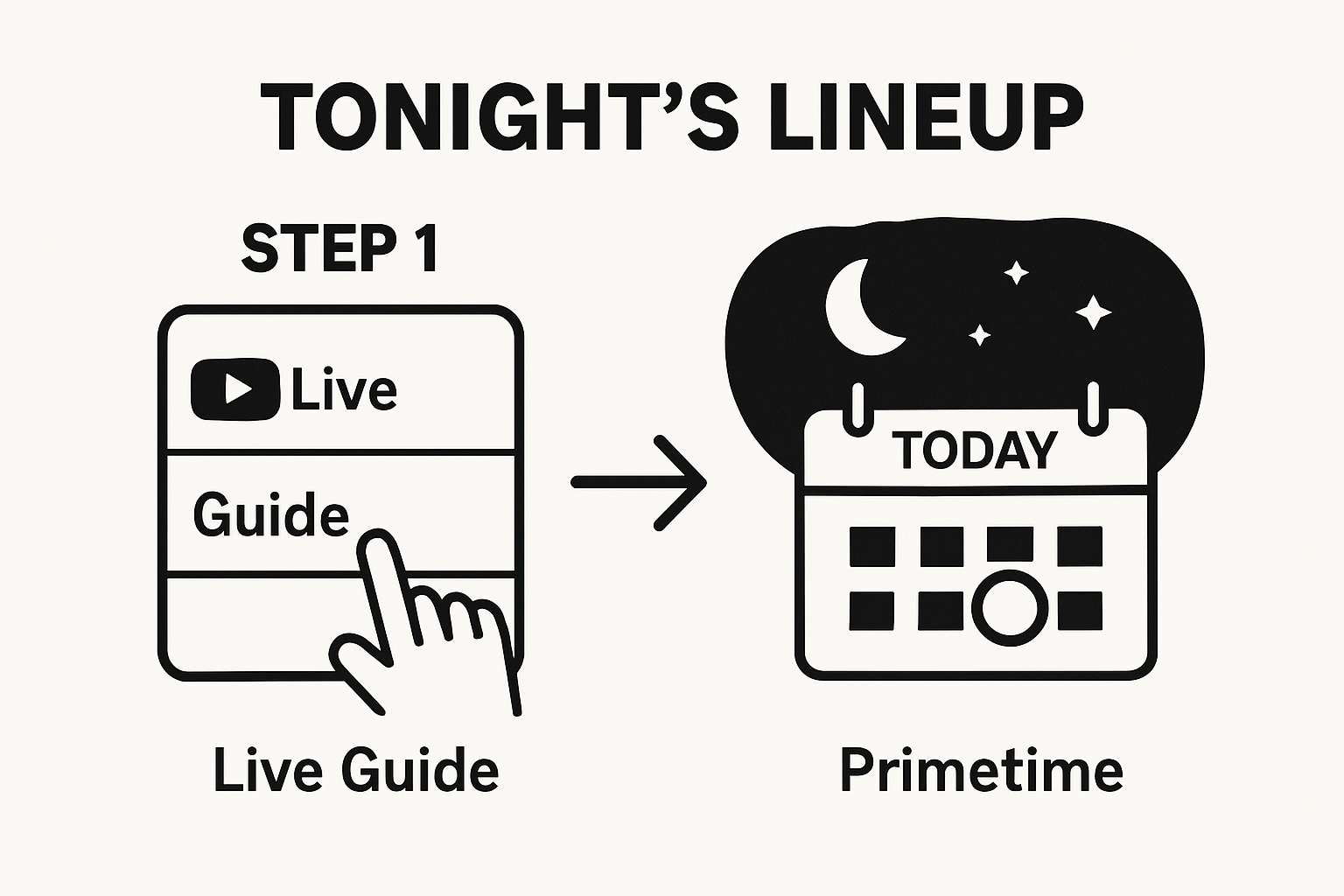
- Step 2: Navigate To The Live Guide
- Step 3: Select The Current Date To View Tonight’s Schedule
- Step 4: Filter Your Search By Genre Or Channel
- Step 5: Track Upcoming Shows And Set Reminders
Quick Summary
| Key Point | Explanation |
|---|---|
| 1. Access YouTube TV Easily | Launching the app is simple across devices including smart TVs, mobiles, and browsers. Just download and log in to get started. |
| 2. Use the Live Guide Effectively | Navigate the Live Guide to find current programming by using your device’s remote or touchscreen controls for easy access. |
| 3. Select Tonight’s Schedule | Ensure you’re viewing the correct date in the Live Guide to avoid missing your favorite shows by adjusting the date with your device’s arrows. |
| 4. Filter Content by Genre | Streamline your search by using filters for genres or specific channels, making it easier to find what you want to watch tonight. |
| 5. Set Reminders for Upcoming Shows | Create reminders or recordings for shows directly from the Live Guide, helping you keep track of your favorite programming. |
Step 1: Open YouTube TV on Your Device
Starting your evening entertainment journey begins with successfully accessing YouTube TV on your preferred device. YouTube TV offers multiple entry points, making it convenient for viewers to start streaming their favorite shows and channels quickly. Whether you are using a smart TV, mobile device, gaming console, or streaming device like Roku or Apple TV, the process remains straightforward and user-friendly.
Accessing YouTube TV Across Different Devices
For most users, launching YouTube TV involves a few simple steps that remain consistent across platforms. On smart TVs and streaming devices, locate the YouTube TV app within your device’s app store or applications menu. Download the app if it isn’t pre-installed, then select it to open. Smart TV users with built-in platforms like Samsung, LG, or Sony typically find the app readily available in their native app marketplace.
Mobile device users can download the YouTube TV app from the Apple App Store or Google Play Store. After downloading, open the application and sign in with your Google account credentials associated with your YouTube TV subscription. Android and iOS users will find the process nearly identical, requiring just a few taps to get streaming.
For those using web browsers on computers, navigating to youtube.com/tv provides an alternative method of accessing the service. This web-based approach works perfectly for users who prefer not downloading additional applications or are using shared or work computers. Simply log in with your credentials, and you are ready to explore the vast array of channels and on-demand content.
Here is a summary table to compare how to access and use YouTube TV across different devices.
| Device Type | How to Access YouTube TV | Unique Tips or Considerations |
|---|---|---|
| Smart TVs | Download/open app from TV’s app store or applications | Some brands like Samsung or LG have pre-installed apps |
| Streaming Devices | Find/download app in device’s app store | Use remote for navigation and selection |
| Mobile Devices | Download app from Apple App Store or Google Play Store | Android and iOS experience nearly identical |
| Web Browsers | Go to youtube.com/tv and log in | Chrome recommended for best performance |
| Gaming Consoles | Download app from console’s app store | Requires login with Google account |
Computer users should ensure they have a stable internet connection and an updated web browser for the smoothest experience. Google Chrome typically offers the most seamless integration, but other modern browsers like Firefox and Safari also support YouTube TV without significant issues.
Once launched, most users will see a welcome screen or their personalized channel guide, confirming successful access to YouTube TV. If you encounter any login difficulties, double-check your subscription status and internet connectivity. Pro tip: Having your login information readily available can expedite the process and minimize potential frustration during setup.
Step 2: Navigate to the Live Guide
Now that you have successfully launched YouTube TV, the next crucial step is mastering the Live Guide navigation. Understanding the Live Guide is key to discovering what’s on tonight and streamlining your viewing experience. This digital navigation tool serves as your primary gateway to exploring channels, schedules, and upcoming programming.
Most devices offer multiple pathways to access the Live Guide, making it adaptable to different user preferences and device interfaces. On smart TVs and streaming devices, look for a dedicated Guide or Live TV button on your remote control. Typically, this button is prominently displayed and often colored differently to ensure easy identification. When pressed, it will instantly transform your screen into a comprehensive channel listing with current and upcoming shows.
Navigating Guide Variations Across Devices
For remote users, the process involves using arrow keys to scroll through channels horizontally and vertically. Pay attention to the time slots displayed, which typically show programming for the next few hours. Some devices offer a color-coded system indicating live, upcoming, and previously aired content, helping you quickly identify what’s currently playing. Explore more about understanding TV guide functionality to become a navigation expert.
Mobile and tablet users will find the Live Guide slightly different. On these devices, tap the Guide icon usually located at the bottom or top of the screen. The interface adapts to your screen size, presenting channels in a scrollable, user-friendly format. Android and iOS versions might have slight variations, but the core navigation remains consistent.
Web browser users can access the Live Guide by clicking the Guide tab after logging into YouTube TV. The web interface often provides the most expansive view, allowing for easier scanning of multiple channels and time slots simultaneously. Pro tip: Use the search or filter functions to quickly locate specific genres or types of programming if you’re looking for something particular.
Verify you’ve successfully navigated to the Live Guide by confirming you can see a grid of channels with current and upcoming shows. If you’re stuck or cannot locate the Guide, check your device’s specific YouTube TV app settings or consult the device manual for precise instructions. Remember, each device might have a slightly unique approach, so patience and exploration are key to mastering your YouTube TV navigation skills.
Step 3: Select the Current Date to View Tonight’s Schedule
Identifying tonight’s programming requires precise date navigation within the YouTube TV interface. After accessing the Live Guide, you will want to ensure you are viewing the correct date for your desired viewing schedule. Most digital TV guides automatically default to the current date, but understanding how to confirm and potentially adjust this setting ensures you do not miss your preferred shows.
On most devices, the current date is prominently displayed at the top or side of the Live Guide. Look for a clear date indicator, which typically shows the full month, day, and sometimes the day of the week. Some interfaces will have small navigational arrows next to the date, allowing you to move forward or backward through different days with simple button presses on your remote or touchscreen.
Selecting and Verifying Your Date
For remote users, use the arrow keys to navigate through date options. Pay close attention to the date selection mechanism, which might vary slightly between smart TVs, streaming devices, and mobile platforms. On most devices, pressing left or right near the date header will cycle through available dates. Most YouTube TV interfaces provide a seven-day forward view, enabling you to plan your entertainment well in advance.
Tablet and smartphone users will find date selection even more intuitive. Explore advanced TV guide navigation techniques to enhance your streaming experience. On mobile devices, you can typically swipe left or right to change dates, or tap on a calendar-like date selector. Android and iOS versions maintain consistent date navigation principles, ensuring a familiar experience across different devices.
Web browser users can usually click or hover over date indicators to expand selection options. The web interface often provides the most straightforward date navigation, with clear clickable date ranges and sometimes a mini-calendar view for precise selection.
Pro tip: If you are planning to watch something later in the week, take advantage of YouTube TV’s multi-day guide. Some devices allow you to set reminders or mark favorite shows directly from the guide, making future viewing planning seamless. Always verify that the date displayed matches the evening you are interested in watching to avoid missing your preferred programming.
Confirm you have successfully selected the correct date by checking that the channel listings and times align with tonight’s date.
 If you encounter any difficulties changing dates, check your device’s specific YouTube TV app settings or consult the user manual for device-specific instructions.
Step 4: Filter Your Search by Genre or Channel
Navigating the vast landscape of television programming becomes significantly easier with YouTube TV’s advanced filtering capabilities. This step transforms your viewing experience from overwhelming to precisely targeted, allowing you to quickly locate exactly what you want to watch tonight. The filtering process enables viewers to cut through hundreds of channels and narrow down content based on personal preferences.
Most devices offer multiple approaches to filtering, with genre and channel selection being the primary methods.
On smart TV and streaming device interfaces, look for a filter or search icon, typically represented by a funnel or magnifying glass. When selected, this icon opens a menu where you can specify your viewing preferences. Remote users will use arrow keys to navigate through genre categories like sports, movies, news, entertainment, and more.
Mastering Filtering Techniques
Mobile and tablet users enjoy even more intuitive filtering experiences. Touchscreen interfaces allow quick swiping and tapping to refine search results. Learn more about advanced TV guide navigation techniques to enhance your streaming skills. On these devices, you can typically access filters through a dedicated button at the top or bottom of the screen. Genre filters are often color-coded or icon-based, making selection visually straightforward.
Web browser users will find the most comprehensive filtering options. The desktop interface typically presents a sidebar or dropdown menu with extensive genre classifications and channel-specific filtering. Pro tip: Use the search bar in conjunction with genre filters to create hyper-specific content discovery. For instance, you might filter for “sports” and then further refine by selecting specific sports networks like ESPN or Fox Sports.
For those seeking specific channels, most YouTube TV interfaces offer an alphabetical or categorical channel list. Android and iOS versions maintain consistent navigation principles, allowing you to scroll or search through available channels quickly. Some advanced filtering options even let you create custom lists of favorite channels for faster future access.
Verify your filtering success by checking that the displayed programming matches your selected genre or channel preferences. If the results seem limited, experiment with broader category selections or adjust your filtering criteria. Remember that not all channels carry every genre, so some flexibility might be necessary.
Final recommendation: Take time to explore the filtering interface on your specific device. Each platform offers slightly nuanced filtering approaches, and becoming familiar with your device’s unique navigation will significantly enhance your YouTube TV viewing experience.
Step 5: Track Upcoming Shows and Set Reminders
Mastering the art of tracking upcoming shows transforms your YouTube TV experience from passive viewing to proactive entertainment management. This critical step ensures you never miss your favorite programs by leveraging the platform’s sophisticated reminder and tracking functionalities. Modern streaming interfaces have evolved to make show tracking intuitive and personalized across multiple devices.
When you locate a show of interest in the Live Guide, most interfaces offer an immediate reminder or record option. On smart TV and streaming devices, highlight the desired show and look for icons representing a bell (for reminders) or a red dot or record symbol. Remote users will typically press the select or OK button to activate these features. Pay close attention to the specific icon, as reminder and recording functions might have slightly different symbols.
Advanced Tracking Strategies
Mobile and tablet users enjoy even more streamlined tracking capabilities. Explore comprehensive TV guide navigation techniques to enhance your viewing strategy. Touchscreen interfaces allow quick tapping to set reminders, with most platforms offering additional customization. Android and iOS versions provide similar reminder interfaces, typically presenting options like setting a precise notification time before the show starts.
Web browser users will find the most comprehensive tracking tools. The desktop interface often allows you to create complex reminder sets, including options for series recordings, multiple episode tracking, and customized alert settings. Pro tip: Take advantage of the platform’s ability to track entire series rather than individual episodes. This feature ensures you capture every installment of your favorite shows without manual intervention.
Most YouTube TV interfaces offer additional tracking nuances. You can typically create watchlists, mark favorite channels, and receive personalized recommendations based on your tracking history. Some platforms even provide conflict resolution for overlapping show recordings, automatically prioritizing your most-watched series.
Verify your tracking success by checking your Upcoming or Recorded sections. These areas will display all shows you have marked for future viewing or already captured. If you do not see your selected shows, double-check your reminder settings and ensure your device is properly synchronized.
Final recommendation: Spend a few minutes exploring the tracking interface on your specific device. Each platform offers unique reminder customization, and becoming familiar with these tools will dramatically improve your ability to never miss a favorite program. The goal is to transform your TV viewing from a random experience to a carefully curated entertainment journey.
Never Miss a Great Show: Let Sparetimetv.com Be Your TV Schedule Solution
Are you frustrated by searching through endless guides on YouTube TV just to find out what is truly worth watching tonight? The struggle to navigate current dates, filter by genre, and track upcoming shows can make your evening entertainment feel like a chore instead of a joy. You want easy access to the right TV guide—one that offers clear primetime schedules, top-rated picks, and the latest streaming premieres all in one place. We understand how important it is to have a tool that cuts through the noise and simply shows you what’s on now and what’s coming up next.
Solve the hassle today. Visit Sparetimetv.com to experience our advanced TV guides and movie schedules designed for busy viewers like you. Explore how our site helps you master TV guide navigation and browse curated lists of shows and movie premieres updated daily. Take control of your evenings and start discovering the best in entertainment with just a single click. Check today’s full lineup and unlock smarter, faster TV planning right now.
Frequently Asked Questions
How do I open YouTube TV on my device?
To open YouTube TV, download the app from the app store on your smart TV, mobile device, gaming console, or streaming device. For web users, simply visit youtube.com/tv and log in with your credentials.
How can I navigate the Live Guide on YouTube TV?
You can navigate the Live Guide by pressing the ‘Guide’ or ‘Live TV’ button on your remote, or by tapping the ‘Guide’ icon on mobile devices. This will display the current and upcoming shows available for streaming.
How do I select a specific date to view tonight’s programming?
In the Live Guide, find the date indicator at the top of the screen. Use the arrow keys on your remote or swipe on your mobile device to navigate to the correct date for tonight’s programming.
What filtering options are available to find shows on YouTube TV?
YouTube TV allows you to filter shows by genre or channel. Look for the filter or search icon on your device interface to specify your viewing preferences, making it easier to find content you want to watch.